Quick Start
First things first
If you are using Bukkit, then you need to have permissions to use WorldEdit. You can give yourself op (
/op yourname) to give yourself permissions. Sponge servers will also need to use permissions, though Sponge does not use op to grant all permissions.If you are using NeoForge/Fabric and playing single player, then WorldEdit is only enabled if your world has cheats enabled.
If you are using NeoForge/Fabric server, then only ops can use WorldEdit.
Tip
For NeoForge/Fabric, you can:
Turn on “cheat-mode” in WorldEdit’s settings (see Configuration) file to let you use WorldEdit even in survival (and on a server, everyone is allowed)
Or instead, turn on “use-in-creative” to let yourself use WorldEdit when you have creative mode (and on a server, when someone has creative)
Want to see selection lines?
To see lines showing your selection, you can either:
Access a limited version of the selection outlines server-side via the
//drawselcommand. It works only for cuboid selections that are not larger than 48x48x48 (or 32x32x32 on older versions), and you have to be in creative mode. These limitations are due to how structure blocks have worked in Minecraft for a long time.Use a third party client-side mod, e.g. WorldEdit CUI (Fabric). Note that this mod requires Fabric, so you will have to install it at first.
Note
If you would like to use an older version of Minecraft (1.12 or earlier), in addition to downloading an older WorldEdit (version 6), you may also need the old WorldEditCUI mod by Mumfrey. Note that this mod requires LiteLoader (installation instructions on that page) instead.
The selection lines mod works regardless of how you may have installed WorldEdit (on a Bukkit server, on singleplayer, etc).
Getting Around
First, let’s figure out how you can get around quickly.
Look at a block not too far away and type
/jumptoStand under a tree and type
/ascendWhile on top of the tree, type
/descendStand behind a tree trunk, look straight ahead, make sure there’s room on the other side, and type
/thru
Or whip out your compass (or type //wand -n), look at a nearby block, and left click. Want to go through walls? Right click on a wall.
Making Selections
A cuboid is like 3D rectangle. In WorldEdit, you select the region that you want by setting two points of a cuboid.
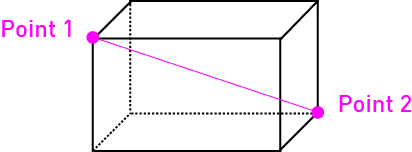

How do you choose the two points? You can either:
Left and right click blocks while holding a wooden axe (use
//wandto get a wooden axe)Stand somewhere and type
//pos1and//pos2Look at a block and type
//hpos1and//hpos2
Tutorial: Make an approximate selection of a 15x15x15 area to test with and go to the next section.
Doing things with the selection
Set the entire thing to bedrock:
//set minecraft:bedrock(minecraftis implicit. If you’re playing on a platform with mods, you’ll need the mod’s namespace to identify blocks, eg//set ic2:stone.)Set the entire thing to stone:
//set 1(these are legacy IDs used in Minecraft 1.12 and before. You can use them if you know them already, but it’s recommended (and easier) to learn the names of blocks - new blocks in 1.13+ don’t have these ids!)Set the selection to 50% sandstone, 50% glass:
//set sandstone,glassReplace the sandstone with dirt:
//replace sandstone dirtClear the area:
//set airGenerate an interesting shape:
//g 35 data=(32+15/2/pi*atan2(x,y))%16; (0.75-sqrt(x^2+y^2))^2+z^2<0.25^2Look in a cardinal direction (not diagonal) and repeat your selection:
//stack 4
Let’s undo your changes!
Undo 7 times:
//undo 7
Adjusting the selection
So you’ve got a cuboid. Let’s change it!
Make the cuboid 10 blocks taller, going up:
//expand 10 upMake the cuboid 5 blocks longer in the direction that you are looking:
//expand 5Make the cuboid 10 blocks shorter, going down:
//contract 10 down
Playing with brushes
Grab a pickaxe (or any item of choice) and have it as your active slot.
Turn on a stone brush of radius 5:
/br sphere stone 5Aim at ground not near you and right click to place large stone spheres.
Make it so the brush only affects grass:
/mask grassInstead of placing stone, let’s place wool:
/material red_wool,green_woolRight click more areas.
Disable the brush:
/brush none
Continuing on…
Checkout out the rest of the docs.